Install Maya IPTV on iPhone
The app is not on the App Store. Two ways to install it, depending on where you are: AltStore PAL, the official alternative marketplace, in two minutes with no computer if you are in the European Union; or SideStore, a free and safe tool that needs a computer once, everywhere else. Either way, the app then updates itself.
Which method is for you?
🇪🇺 Method A · AltStore PAL
You are in the European Union and your iPhone runs iOS 17.4 or later. Installs in 2 minutes, right on the iPhone, like from a store.
See method A →🌍 Method B · SideStore
You are outside the EU, or your iOS is older. ~20 minutes once with a computer, then nothing else to do.
See method B →🇪🇺 Method A · AltStore PAL, the easy way (European Union)
Since September 2026, Maya IPTV is notarized by Apple and distributed on AltStore PAL, the official alternative marketplace. No computer, no cable, no 7-day refresh: it installs like from a store and updates itself.
- On your iPhone, open altstore.io in Safari and install AltStore PAL (Apple asks for a confirmation, that is normal).
- Open AltStore PAL, Sources tab, tap + and paste the address below, or simply tap this button:
- Maya IPTV shows up in the source: tap Install. Updates then arrive automatically.
https://raw.githubusercontent.com/yannsar/mayaiptv-downloads/main/altstore-pal.json
🌍 Method B · SideStore (outside the EU or older iOS)
This method works everywhere in the world. Setup happens once with a computer; the app then updates itself and stays active without you doing anything. Follow the steps in order.
✅ What you'll need
- A Windows or Mac computer (for the first install only);
- Your iPhone's cable;
- Your Apple ID (email address + password), with two-factor authentication enabled. 💡 Preferably a secondary Apple ID, dedicated to this purpose.
- A passcode set on your iPhone (required);
- The free LocalDevVPN app, installed on your iPhone from the App Store: it's the local VPN SideStore will enable (step 4) to keep Maya IPTV active.
1Prepare the computer
1.1 — Install iTunes (Windows only — on Mac, nothing to install: skip to step 1.2)
Your computer needs Apple's drivers to recognize your iPhone.
- Download iTunes for Windows (64-bit) from the official Apple website.
- Install it, then restart the computer.
1.2 — Download the installation tool
We use iloader, a free tool that installs SideStore on your iPhone.
- Go to the official website: iloader.app (or the project's official GitHub).
- Download the version for your computer (Windows or Mac) and install it.
1.3 — On Mac: allow iloader to open
No iTunes or drivers needed: your Mac recognizes the iPhone natively. The only quirk: by default, macOS blocks apps that don't come from the App Store. On first launch:
- Right-click (or Ctrl + click) iloader → Open → confirm Open.
- If macOS still refuses: System Settings → Privacy & Security, scroll down to the message about iloader and click Open Anyway, then relaunch the app.
2Install SideStore
- Plug your iPhone into the computer. On the phone, tap Trust and enter your passcode. On Mac, if an "Allow accessory to connect?" window also appears on the computer, click Allow.
- Keep the iPhone unlocked, on the Home Screen, throughout this step.
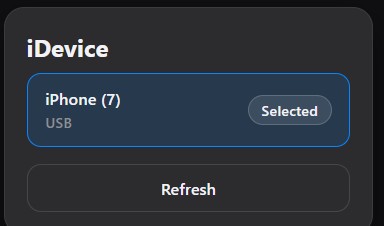
- Open iloader. Your iPhone appears in the iDevice panel, marked Selected. If it doesn't show up, click Refresh.
- Sign in with your Apple ID (email + password + 6-digit code).
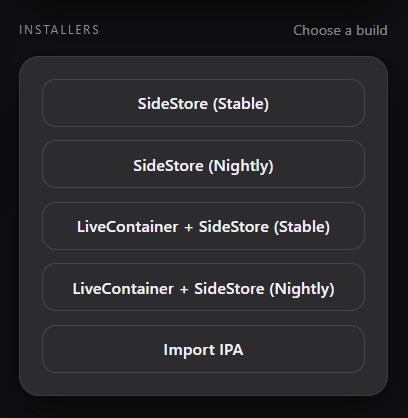
- In the Installers section, choose SideStore (Stable): iloader installs it on your iPhone.
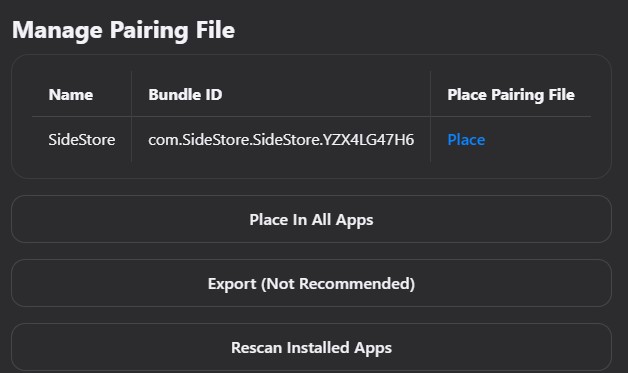
- Still in iloader, open Manage Pairing File and click Place on the "SideStore" row (or Place In All Apps). The pairing file is what lets SideStore work on its own.
3Authorize SideStore on the iPhone
3.1 — Trust the certificate
- Settings → General → VPN & Device Management.
- Under "Developer App", tap your Apple ID email → Trust → confirm.
3.2 — Enable Developer Mode
- Settings → Privacy & Security → Developer Mode.
- Turn on the switch → the iPhone restarts → confirm after the restart.
4Enable automatic updates
This is the step that saves you from ever having to do this again.
- Open SideStore on your iPhone.
- Sign in with your Apple ID.
- Turn on the VPN that SideStore offers — the LocalDevVPN app you installed as a prerequisite — and leave it on at all times.
5Install Maya IPTV ⭐
- In SideStore, go to the Browse tab.
- In the top right, tap Sources → +.
- Paste the Maya IPTV source address:
https://raw.githubusercontent.com/yannsar/mayaiptv-downloads/main/sidestore.json
- Confirm: MayaIPTV appears in the list.
- Tap Get / Install to install it.
- Open Maya IPTV from your Home Screen. 🎉
✅ All done — what now?
- Nothing left to do each week: SideStore automatically keeps Maya IPTV active in the background (as long as the VPN is on).
- Updates are automatic: when a new version comes out, an Update button appears in SideStore. One tap and you're up to date — without losing your settings.
Just keep your iPhone connected to the Internet from time to time.
🛠️ Troubleshooting
My iPhone doesn't show up in iloader
On Windows, check iTunes (the version from Apple's website, not the Store), restart the computer, and plug the iPhone back in unlocked. On Mac, check the cable and that the iPhone shows up in the Finder sidebar (if not, tap Trust on the phone), then click Refresh in iloader.
iloader won't open on Mac ("unidentified developer")
Right-click the app → Open → Open. Otherwise: System Settings → Privacy & Security → Open Anyway, then relaunch iloader.
"Untrusted Developer" message
You skipped step 3.1: Settings → General → VPN & Device Management → tap your email → Trust.
Maya IPTV stopped working
Check that the SideStore VPN is turned on (it's what keeps the app active). Open SideStore and the app reactivates.
The source won't load / MayaIPTV doesn't appear
Check that the source address is pasted exactly, with no spaces. Make sure you're connected to the Internet.
Developer Mode doesn't appear in Settings
It only appears after SideStore is installed. Finish step 2, then try again.